Full Settings Reference
This page contains a complete reference of all of the settings available in the app on the Settings page. The Settings page groups them into topics: Theme and design, Reading (with Versions and sources), Daily reading planner, Notes, Language, Teaching tips, Privacy and About. This page follows the same order.
Very occasionally a setting might be listed on this page that doesn't appear in your app just yet. When your app next updates itself, it will show the new setting.
Licence status - this panel will show you whether you are using a trial licence and when it will expire. The panel will appear green with a thank you message if you have purchased a lifetime licence of the app. You can read a little more about this on our download page.
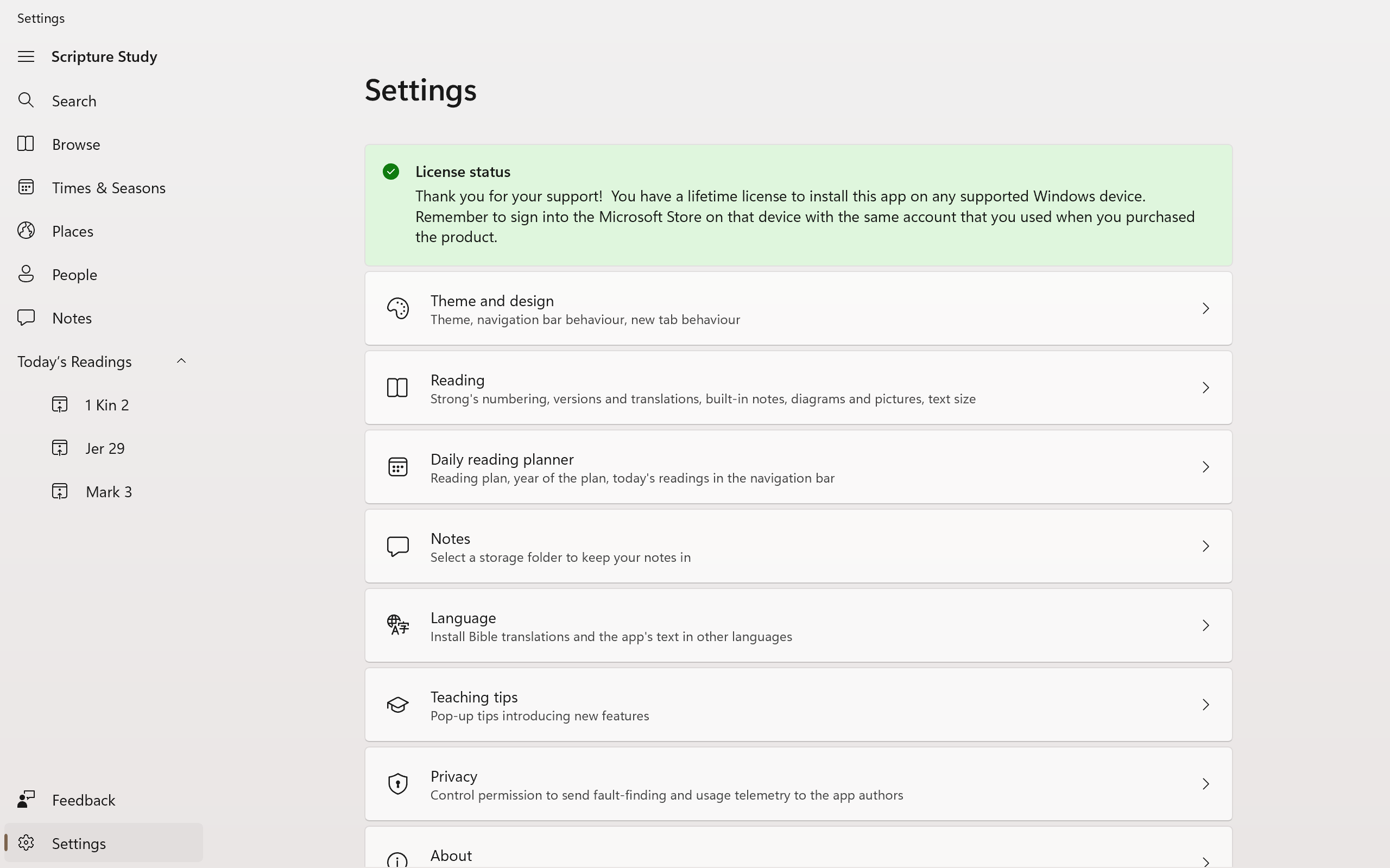
Theme and Design
Theme - Select the Light or Dark theme for the app. If you choose “Default” then the app will use the theme from your Windows Personalization Settings that is shared by all apps.
Accent colour - Choose the colour of highlights, selections, links and verse numbers. "Windows' accent colour" uses the accent colour from your Windows Personalization Settings, or you can choose red, orange, yellow, green, steel blue, purple or brown, which stay the same whatever Windows is set to. A new colour takes effect when the app is closed and re-opened.
Tab content
Open when app starts - When the app starts up, it opens a new tab. From this setting you can choose what to display in that first tab: the Browse menu, the Search page, Genesis chapter 1, the first daily reading, or the tabs you had open when you last closed the app. The default is “First daily reading”.
Show Features & Content page first - The app shows its Features & Content page, describing what is new, the first time it starts after an update. Turn this on to show that page every time the app starts, before opening the main content.
New tab content - After the app has started and opened the first tab, you can open further tabs. This setting allows you to configure what is shown in those subsequent new tabs: the Browse menu, the Search page, Genesis chapter 1 or the first daily reading. The default is the “Browse menu”. Another powerful option might be the “Search page” as from there you can browse to all Bible books and perform searches.
Browse button behaviour - Choose what the Browse button in the navigation bar does: open the Browse menu in a new tab (the default), or re-use the tab you are in.
Reading
Show Strong's numbering - Switching this option on will show Strong's numbering of the original Hebrew and Greek words in-line with the text of each version that has them: the King James Version, the World English Bible, the Revised Version and the Louis Segond (1910). When more than one of those versions is shown, a box for each lets you choose which of them show their numbers. Strong's numbers can make it harder to read the text, so you can also leave this turned off but view a specific verse with “Study detail” instead to see Strong's numbers just for that verse.
Show infrequently occurring word counts - For any Strong's numbers that don't appear very often in Scripture, the app can show a number in brackets after the Strong's number. This is the count of times that the word appears in the whole Bible. Often the author of the Bible uses the same word in multiple contexts to teach a common principle behind those contexts, or to illustrate aspects of a type or shadow of Jesus. Clicking the word count will perform a fast search showing all uses of that word.
Show for words occurring less than (times) - Allows the above feature to be customised so that you can show it for more frequently occurring words, or for less frequently occurring words.
Built-in notes
Notes from Times and Seasons - The Times & Seasons section of the app contains events from the Bible arranged in calendar or timeline views. These events are also listed in the normal Bible Reading View underneath any related verses. You can turn these off with this setting if they are distracting.
Notes from Places - Provides links in Bible Reading View next to verses that refer to places. Clicking the link shows a list of events that happened in that place, along with a link to open a map showing the location. You can turn these notes off in Reading View if they are distracting and still see the information by clicking Places in the navigation bar on the left to open the map.
Notes about People - Provides links in Bible Reading View next to verses that mention people who have a page in the People section of the app. Clicking a link shows who that person is, their family and the events of their life. You can turn these notes off if they are distracting and still find everyone by clicking People in the navigation bar.
Photographs, pictures, illustrations and diagrams - A very small number of archaeological photographs, diagrams, illustrations and tables are included in the app. These are shown in the Bible Reading View next to a small number of relevant verses. This setting allows you to turn these off if they are distracting.
Easy reading
Continuous scrolling - When navigating to a chapter, the app will continue to load further chapters until the device's screen is more than full of content. Swiping sideways will cause further chapters to load. This allows you to continuously swipe or scroll through neighbouring chapters and even books in either direction. You can turn this off to speed up the loading of the first chapter, which may help save resources on less capable devices.
Always open references in a tab - Normally clicking on a reference link will open a temporary pop-up showing a quick view of the reference, assuming your device's screen is large enough. If you would rather always open references fully in a new tab, you can tick this setting.
Text size - One of the advantages of using a device to read the Bible is that you can set the size of the text just right and adapt it as you grow older. You can pinch-to-zoom on any reading page to change the size of text and graphics temporarily just for the currently open tab. You can also use this slider on this Settings page to set a new text size that is remembered across different tabs in the app, and is also remembered when the app is closed and re-opened.
Versions and Sources
This page is opened from “Versions and sources” at the top of the Reading settings. It lists all of the included translations and paraphrases of the whole Bible (both Old and New Testaments). Configuration of notes from the Treasury of Scripture Knowledge is included here too. The translations in another language appear here once its language pack is installed (see Language below).
Primary version - Choose the Bible version that is always shown, and shown first, in the reading view and the study view. It is also the version shown in pop-ups, and the one searched unless you choose another version on the Search page. The King James Version is the primary version unless you choose another, or the Louis Segond (1910) when the app is in French. The word graph always uses the King James Version, whichever version is the primary one: read why on the Translations & Dictionaries page.
Each other translation can be turned on or off to show or hide it in the Bible Reading View. For each one, the following display-modes can be set.
Not displayed - The text (Bible translation, paraphrase or set of notes) is not displayed at all.
Standard column - The text is shown in a dedicated column in a normal size. It appears alongside the primary version.
Small column - The text is shown in a dedicated column but in a smaller size than the Standard column option. It can appear similar to a margin showing an alternative rendering of each verse. Useful for comparing translations quickly whilst remaining focused on the primary version when reading.
Standard row - Each verse from the text is shown in a dedicated row underneath the same verse from other versions. It is displayed in a normal size.
Small row - Each verse from the text is shown in a dedicated row underneath the same verse from other versions, but it is displayed in a smaller size than the Standard row option. Useful for displaying many alternative versions whilst helping the eye stay focused on the primary version when reading.
Versions and sources - Old Testament only
This section lists translations that only apply to the Old Testament, such as the Septuagint. For each translation, the same options as are described in the previous “Versions and sources” section apply.
Versions and sources - New Testament only
This section lists translations that only apply to the New Testament, such as various original Greek sources. For each translation, the same options as are described in the “Versions and sources” section apply.
Daily Reading Planner
Show daily readings in navigation bar - Switching this setting off will hide the “Today's Readings” section from the navigation bar. This might be useful if you want more space for your own bookmarks.
Reading plan - Choose the plan to follow. Its readings are shown in the navigation bar, in the Readings Planner and beside each chapter's title. There are four plans: the Bible Companion (the default), M'Cheyne's Calendar, M'Cheyne's Calendar over two years, and a plan that reads the whole Bible from Genesis to Revelation in a year. Each plan has a short description in the app.
Year of the plan - For a plan that takes more than one year, such as M'Cheyne's Calendar over two years, choose which of its years this year is.
If you use a different daily readings scheme, please use the Feedback feature to let us know the scheme and we can look at adding it to the app - including a link to a webpage about the scheme would be ideal. We are unable to add reading schemes that are copyrighted.
Notes
Allow me to create my own notes when reading Bible passages - if this setting is turned on, then you can create your own notes, margin shading and word highlighting alongside Bible verses as you read. If this option is turned off, some Notes menu commands are not available in Reading View.
When this option is turned on, you also need to configure a location to save your notes in using the next setting. You can read this page for more help getting started with your own notes and configuring the folder.
Choose a folder to keep my notes in - before notes features can work, you need to choose a folder on your computer to save the notes in. To synchronise your notes between devices, or back them up to the cloud, you can create a folder in Microsoft OneDrive or Dropbox and return to this app to choose that new folder. You should choose a folder that is initially empty.
Show my own notes when reading Bible passages - shows or hides your own notes, margin shading and word highlighting alongside Bible verses as you read. Turning this off doesn't delete any notes: you can turn it back on later to see them again.
Show my highlighted words - this setting will show or hide any text highlighting that you've added to your electronic Bible. Useful if you've made good use of the text highlighting feature but want to temporarily turn highlights off to read the text again plainly. Turning this setting off also hides the text highlighting commands from the bottom of the Bible reading view. You can read more about text highlighting here.
Show notes from other chapters when reading Bible passages - this setting affects notes that you create against a Bible verse and, in that note, refer to a verse in a different chapter. If this setting is enabled then your note will appear against the verse you created it against but also will appear when you browse the other chapters mentioned in your note. This is useful to create a single note that relates multiple verses together, for example by following the different uses of a particular word. It saves you having to navigate to each chapter in turn to create a dedicated note against each verse. You can read a little more about this on the page explaining how to create a new note.
Language
The app is available in English and in French. Each language has a language pack, holding its Bible translations and the text of the app's menus and buttons in that language.
Language packs - Lists each language and whether its language pack is installed. Windows installs a language's pack for you if the language is among your preferred languages in Windows' own settings. You can download and install any other language's pack here, or uninstall one that you installed (on Windows 11), and then restart the app. An installed pack's Bible translations appear on the Versions and Sources page, where you can turn on the ones you want to read.
Show menus and buttons in - Choose the language of the app's menus and buttons, from the languages whose packs are installed, or follow Windows' preferred language (the default). The app asks you to confirm, then restarts in the language you chose.
Teaching Tips
The app occasionally shows pop-up tips introducing new features. Once you select “Got it” on a tip, it won't pop up again. If you want to reset the tips to see them all again, you can do so here using the “Reset tips” button.
Privacy
The app doesn't store or send any personally-identifiable information about you. It always sends the minimum diagnostic data that we need to keep it secure, up to date and working as expected: for example, if the app crashes, details about the crash that help us to find and fix the problem. We use this fault-identification information to release fixes and improvements to the app that benefit everyone, and you may find that a fault you experience is fixed automatically in an update two weeks later.
Send optional diagnostic data? - If you choose to allow it, the app also sends optional data about how the app is used, such as how often you use certain features. This helps us to improve your experience and to fix problems more quickly. The app works equally well and is equally secure if you don't send it, and you can change your choice at any time using this setting. You can also read our Privacy Policy here.
About
There are no configurable settings in this section, it is purely for information.
Share this app with a friend by sending them this web page link - opens the homepage of this website. You can copy the site's address from your browser address bar to send it to a friend, or use the Share functionality built into your web browser.
Application details - shows the name and version of the app that you have installed, when it was installed, and whether an update is available. Also shows a link to the Microsoft Store web page that you can use to read more about the app or to purchase it.
Support - links to our online support and troubleshooting page, and to the Feedback page for suggesting a correction or reporting a fault.
Acknowledgements and credits - read acknowledgements of all of the sources of data used in the app apart from our own.
Advanced diagnostics details - technical information occasionally useful for support purposes.