How to Search for Words and Phrases
The best way to learn what the Bible teaches is to read it through completely, a portion every day. It might take a year to go through the whole Bible, but then start again back at the beginning. Each read through, you will understand a little more.
One way to build that understanding faster is to search for ideas to find other mentions of them, and compare the passages that you find. For example, reading Isaiah 11 allows us to learn of the Branch growing out of the house and line of Jesse (the father of Israel's King David). Searching for “Branch” leads us to other passages, such as Jeremiah 23:5 where we learn that this Branch was not David but someone later (after Jeremiah's day) in the same line. He would one day be a King who would reign over the whole earth, and establish true justice. We learn He would bear the name of the LORD Himself (whilst not being the same person). We find Zechariah 6:12 where we learn more, and that He would “build the temple of the LORD”. By putting all of these passages together, we build up one picture of part of the role of the Lord Jesus Christ as prophesied in the Old Testament.
Searching for Individual Words and Simple Phrases
The search covers your primary Bible version: the Authorized Version, unless you have chosen another (or the Louis Segond 1910 when the app is in French). Your primary version is chosen in Settings, under Reading, Versions and Sources. To search another version, choose it in the advanced search options (see below).
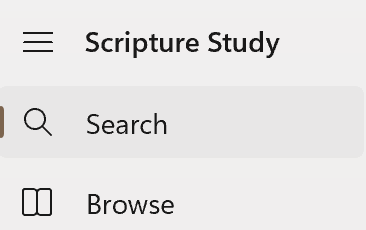
1. To search for a word or a sentence, click the Search item in the navigation pane on the left of the app.
If your device has a physical keyboard, you can also press Alt+S.
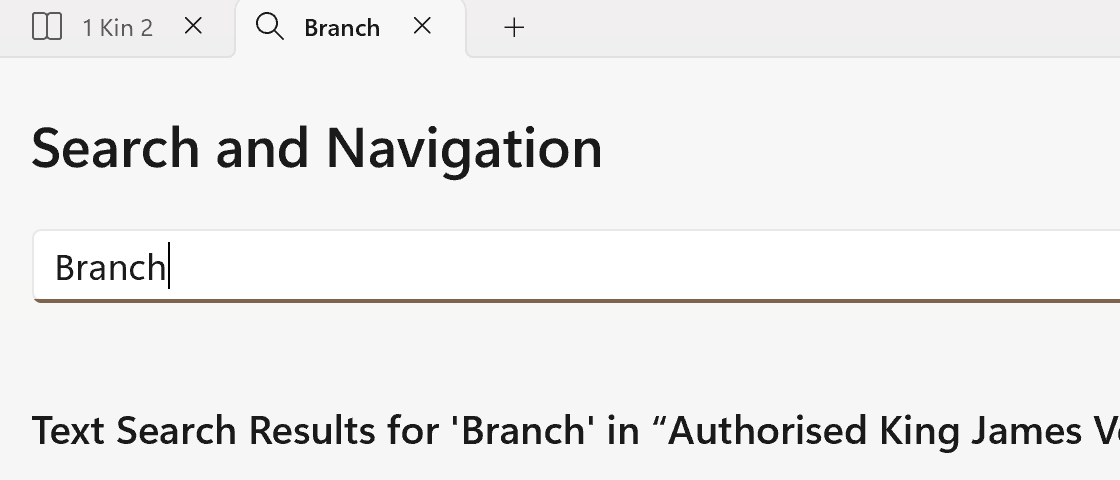
2. Start typing the word or phrase that you'd like to find, in the language of the version you're searching; in our example here we've used "Branch".
The search results will update every few seconds. You don't need to enter any punctuation and it doesn't matter whether you use capital letters or not (the search is *case-insensitive*). Accents can be left out too, in a version that uses them: in French, "eternel" finds "Éternel".
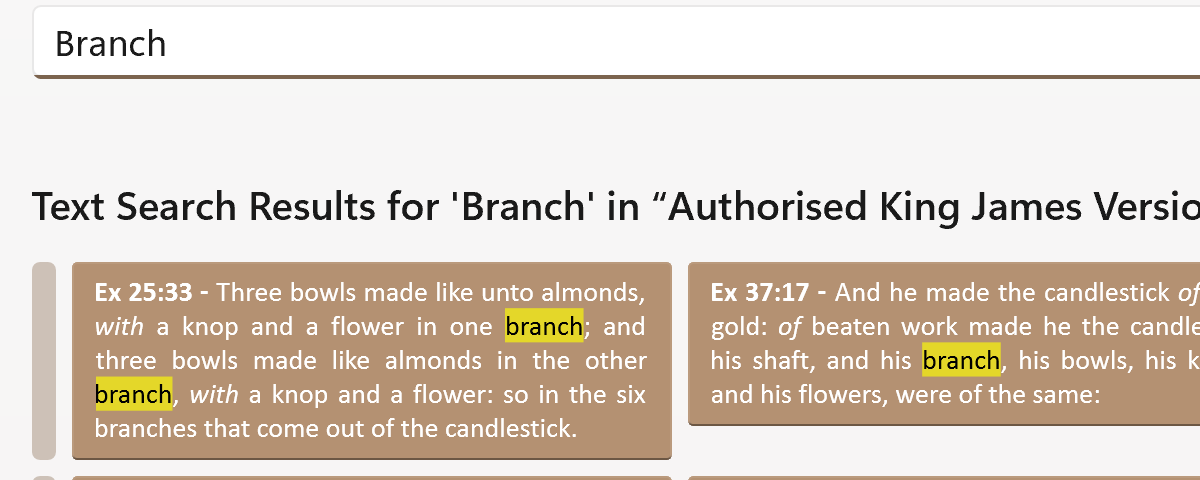
3. Click or tap a search result to open the passage in a new tab. You can change back to the search results tab to open another result without having to repeat your search.
If your device has a physical keyboard and your search is so accurate that there is only one result, you can just press Enter to open that one result.
Underneath the search results, the app may show a list of suggested alternative searches that are close to the search you're currently performing. You can click or tap on a suggestion to search for it.
Searching for Combinations of Words and Complex Phrases
Sometimes you will want to perform a more complicated search. Three special search operators are described below with examples.
- To find all verses containing several words in any order, use the plus symbol, for example
heaven+earth. This example will find all verses that contain bothheavenandeartheven if there are other words appearing between them in the verse, or if the verse contains the wordearthbefore the wordheaven. You're not limited to just two words, you can repeat the plus symbol as many times as you need, for exampleMoses+man+God. - To find all verses containing any one or more of a set of words, use the forward-slash symbol, for example
Ruth/Naomi. This example will find all verses that containRuthorNaomior both names (in any order). You can enter as many words as you need, for exampleRuth/Naomi/Boaz. - You can perform even more complex searches using brackets to group operations together, for example
(Ruth/Naomi)+(Boaz/kinsman)will find all verses containing eitherRuthorNaomibut the verse also must contain eitherBoazorkinsman.
Searching for Strong's Numbers
To search for Hebrew Strong's numbers, add either a zero or the letter H at the start. For example, searching for either 0922 or H922 will find all occurrences of the Hebrew word with Strong's number 922. To search for Greek Strong's numbers, either leave off the zero or add a G at the start. For example, searching for either 151 or G151 will find all occurrences of the Greek word with Strong's number 151.
You can combine words and Strong's numbers together in the same search, and use the plus, slash and brackets operators described above too.
Every version that can be your primary version has Strong's numbers, but not every other version does; if you search for a Strong's number in a version without them, the app tells you so.
If you're trying to look up the definition of a Strong's number instead of search for occurrences of it, use the Browse item in the navigation menu and scroll sideways to the Hebrew and Greek Lexicon books.
Starting a New Search in a New Tab
If you have performed a search and want to keep the results open, you can start a new search in a fresh tab. To do this, click or tap the + symbol in the tabs at the top to open a new tab, then click or tap the Search menu item again. The first search tab will stay open, and your new tab will show a new search page.
Navigating to References
The search page can also be used to navigate quickly to references. This is particularly useful if your device has a physical keyboard. With the search page open, you can type the long or short name of a book of the Bible followed by a chapter number. You can also click or tap the buttons shown on the search page if you would prefer not to use a keyboard.
- You can show the list of chapters for a book by typing a few letters from the book’s name, for example
Gen. - To jump directly to a specific chapter, then add the number after the book’s name, for example
Gen 1. - You can highlight a specific verse too:
Gen 1:2orGen 1.2.
Advanced search options
Click the Show advanced options link to show more search options.
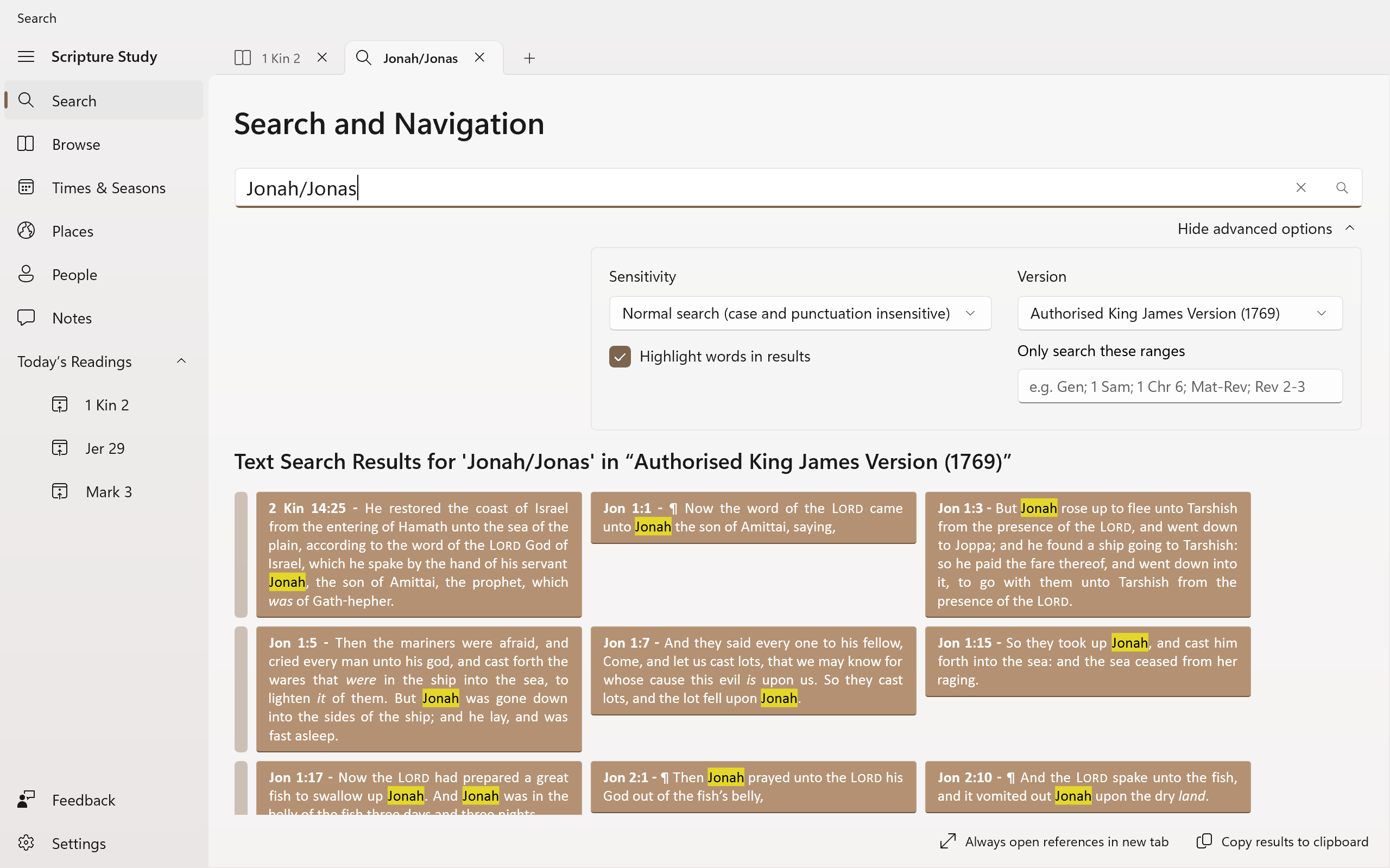
Sensitivity (non-exact searches)
Sometimes the verse we're trying to find is phrased slightly differently than we remember. The “Sensitivity” drop-down allows us to tune how exact the search will be, so that we can look for related words too.
- Strict search - this will search only for exact words that you enter. This search is case-sensitive so capital letters matter. It is also sensitive to apostrophes and hyphens. If you search for
Lordsit won't findLord's. If you search forJabeshgileadit won't findJabesh-gilead. This search is very fast. - Normal search - this is the default option. This search will look for exactly what you enter but will also take account of basic sensible differences, such as capital letters, apostrophes and hyphens. If you search for
Lordsthen it will findLord'sas well. If you search forsevenit will also findSevenbut it won't findSeventh. - Relaxed search - this is a slower search but finds many related words. If you search for
Sevenit will also findseventhandsevenfold.
Highlighting words in results
By default, any terms used in the search criteria are highlighted in the results that are listed. You can turn this off if it is distracting.
Version
By default the search covers your primary version. Choose another version in the “Version” drop-down to search that one instead: another English version, such as the World English Bible or Young's Literal Translation, a French Bible, such as the Louis Segond, or even a Greek or Hebrew text. Type the words in the language of the version you're searching: English words for the Authorized Version, French words for the Louis Segond, and Greek or Hebrew words, in their own alphabet, for the Greek and Hebrew texts. The results are shown in the version chosen.
Only search these ranges
By default the search will search the whole Bible. If you want to limit the search to one or more portions of Scripture, enter them in this box. Separate the ranges with semicolons, for example Gen; 1 Sam; Rev 2-3.
Examples of supported ranges:
1 Kings 6-8(whole chapters 6, 7 and 8 of 1 Kings).1 Kings 6(a whole single chapter)Exodus(a whole single book)Mat-Rev(several continuous books)1 Kings 6:20or1 Kings 6v20(a single verse)1 Kings 6:20-22(a range of verses)1 Kings 6:20,22(two separated verses in the same chapter)1 Kings 6; 8(two separated chapters 6 and 8; a range can leave out the book name to use the one before it)Gen; Lev(two separated books)Gen; 1 Sam; 1 Chr 6; Mat-Rev; Rev 2-3(any mix of the above)- Roman numerals are recognised in book names starting with a number, e.g. both
2 Kings 6andII Kings 6are recognised. - Abbreviated book names are recognised, e.g.
2 Sam 3and2 Samuel 3are both recognised.